Best Webcam for Remote Work Under $100 — Top 5 Picks (2026)
The Logitech C920s has been the gold standard for remote work webcams for years — and in 2026, it still delivers. Crisp 1080p/30fps video, dual stereo microphones, and plug-and-play compatibility with every major platform (Zoom, Teams, Meet). At around $70, it’s the most reliable choice for professional-looking video calls.
| Webcam | Resolution | FPS | Best For | Price | Link |
|---|---|---|---|---|---|
| Logitech C920sTOP PICK | 1080p | 30fps | Best Overall | ~$70 | Amazon |
| Razer Kiyo | 1080p | 30fps | Ring Light Built-in | ~$80 | Amazon |
| Logitech C310 | 720p | 30fps | Budget Pick | ~$30 | Amazon |
| NexiGo N660P | 1080p | 60fps | Best Budget 1080p | ~$45 | Amazon |
| Anker PowerConf C300 | 1080p | 60fps | AI Auto-Frame | ~$90 | Amazon |
Why Your Built-in Laptop Camera Isn’t Good Enough
Built-in laptop cameras are typically 720p with poor low-light performance and fixed positioning. In a professional remote work environment, video quality signals competence. A grainy, poorly-lit image on a team call creates a subconscious impression of disorganization — even if your work is excellent.
A dedicated 1080p webcam mounted at eye level on your monitor makes an immediate, visible difference. Add a desk lamp pointed at your face (not behind you), and you’ll look more professional than 90% of people on any video call — for less than $100 total.
1. Logitech C920s — Best Overall

The C920s is the upgrade over the original C920, adding a physical privacy shutter — a small but meaningful addition in an era of always-on home offices. The 1080p/30fps video quality is excellent in good lighting, and Logitech’s auto-light correction handles darker environments better than most competitors at this price.
Dual omnidirectional mics sound clean enough for most calls, though dedicated USB microphones remain superior. Universal compatibility: Windows, macOS, Chromebook, and every major conferencing platform. Check price on Amazon →
2. Razer Kiyo — Best for Dark Rooms

The Razer Kiyo’s defining feature is its built-in ring light — a circular LED array that illuminates your face evenly without requiring a separate lamp. If you work in a dark room or your primary light source is behind you (a window at your back), the Kiyo solves the lighting problem in one product.
Video quality is on par with the C920s at 1080p/30fps. The ring light has adjustable brightness. The main drawback: it’s bulkier and heavier than standard webcams, which can strain lighter monitor mounts. Check price on Amazon →
3. NexiGo N660P — Best Budget 1080p60

At ~$45, the NexiGo N660P offers 1080p at 60fps — a spec usually found on $100+ webcams. The 60fps framerate produces noticeably smoother video for anyone who moves around during calls, demonstrates products, or does tutorial-style content. The dual microphone with noise cancellation is better than expected at this price.
Low-light performance is where budget webcams typically suffer, and the N660P is no exception — it needs reasonable lighting to look its best. With a desk lamp or ring light, it’s an exceptional value. Check price on Amazon →
4. Anker PowerConf C300 — Best AI Features
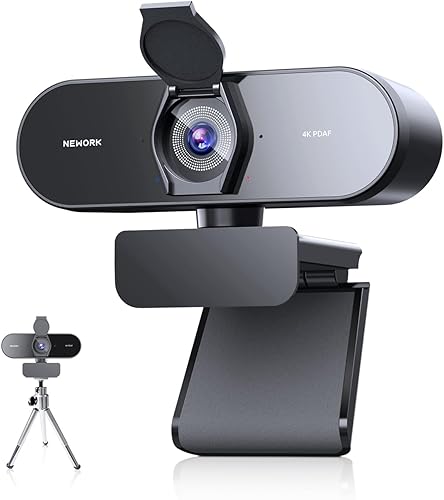
Anker’s C300 brings AI auto-framing to the under-$100 category. The camera automatically tracks you and reframes the shot as you move — useful for standing desk users who regularly adjust their height or anyone who tends to gesture and shift during presentations. At 1080p/60fps with a Sony CMOS sensor, image quality is consistently sharp.
The C300 connects via USB-C and includes a smart exposure mode that auto-adjusts for backlit situations. If your home office has a window behind you, this feature alone is worth the extra cost. Check price on Amazon →
Webcam Setup Tips for Better Video Calls
Position at eye level: Mount your webcam on top of your monitor. Looking down into a built-in laptop camera is unflattering and signals poor setup. Eye level creates natural eye contact with whoever you’re speaking to.
Light your face from the front: The biggest improvement you can make to video quality isn’t a better camera — it’s better lighting. A simple desk lamp or ring light pointed at your face, not behind you, transforms video quality more than any camera upgrade.
Background matters: A clean, uncluttered background — or a tasteful bookshelf — creates a professional impression. Virtual backgrounds on Zoom/Teams work better with good lighting and a higher-quality camera like the C920s or C300.
Frequently Asked Questions
What is the best webcam for Zoom and Microsoft Teams?+
The Logitech C920s is the most-recommended webcam for Zoom and Teams. It’s officially certified by both platforms for optimal compatibility, delivers reliable 1080p quality, and has a privacy shutter. The Anker PowerConf C300 is a strong alternative if you want AI auto-framing and 1080p/60fps.
Is 1080p enough for a home office webcam?+
Yes — 1080p is the right resolution for video calls in 2026. The bottleneck in most video call quality isn’t the camera resolution but rather network compression (Zoom and Teams compress video streams significantly) and lighting conditions. A well-lit 1080p camera looks better than a poorly-lit 4K camera.
Do I need a webcam if my laptop has a built-in camera?+
If you’re in regular video calls, yes. Laptop cameras are typically 720p or lower quality, fixed at the wrong angle (looking up your nose), and perform poorly in low-light. A dedicated 1080p webcam positioned at eye level on your monitor makes a significant, immediately visible difference.
What’s the difference between 30fps and 60fps for webcams?+
30fps is standard for video calls and looks smooth for normal conversation. 60fps produces noticeably smoother motion and is beneficial if you move around frequently, demonstrate physical products on camera, or create tutorial content. For seated calls, 30fps is sufficient.
Can I use a DSLR or mirrorless camera as a webcam?+
Yes — cameras like the Sony ZV-E10, Canon M50, or Fujifilm X-T30 can be used as webcams via USB or HDMI capture card (like the Elgato Cam Link 4K). The image quality is dramatically better than any dedicated webcam. The tradeoff is cost, setup complexity, and the need for an AC adapter for extended sessions.
Home office enthusiast and founder of Home Office Nation. I’ve spent years optimizing my own workspace and analyze thousands of reviews to help you build a better home office without wasting money.
💡 Related Articles
Our Final Verdict
Whatever your budget or specific need, the right home office gear makes a measurable difference in your daily comfort and productivity. Each pick above was chosen for long-term reliability and real-world value.
As an Amazon Associate we earn from qualifying purchases.