How to Improve Posture Working From Home 2026 — Complete Guide
⚡ Quick Verdict — Posture at Home
The three most impactful posture fixes are: raise your monitor to eye level, adjust your chair so your elbows are at 90°, and support your lower back properly. Make these three adjustments today and you’ll notice a difference within hours.
Back pain, neck stiffness, shoulder tension, and headaches are not inevitable parts of working from home — they’re symptoms of poor ergonomics and posture that can be corrected. The average home office worker spends 6–10 hours per day sitting, often in a setup that was never designed for extended work: a kitchen chair, a laptop on the coffee table, or a desk setup that forces constant forward head posture.
This complete guide covers exactly how to assess and correct your posture when working from home in 2026, including chair and monitor adjustments, keyboard and mouse positioning, posture exercises, and the tools that help the most.
The Most Common Posture Mistakes at Home
- Forward head posture: For every inch your head moves forward from its neutral position, the load on your neck doubles. Most laptop users develop this from looking down at a low screen.
- Rounded shoulders: Caused by reaching forward to a keyboard that’s too far away, or a monitor that’s off to one side.
- Posterior pelvic tilt (slouching): Sitting too far back in your chair or in a chair without proper lumbar support causes you to round your lower back rather than maintain its natural curve.
- Wrists bent upward: Typing with wrists angled up puts strain on tendons and can cause repetitive strain injuries.
- Crossed legs or feet not flat on floor: Creates uneven hip pressure and can contribute to lower back and hip pain.
Step 1 — Correctly Adjust Your Chair
Your chair is the foundation of good posture. Follow these adjustments in order:
- Seat height: Adjust so your feet rest flat on the floor (or a footrest) and your thighs are parallel to the ground. Your hips should be at or slightly above knee level.
- Lumbar support: The chair’s lumbar support (or a lumbar cushion) should fill the hollow of your lower back, maintaining its natural inward curve. If your chair has adjustable lumbar height, position it at your belt line.
- Seat depth: There should be 2–4 fingers’ width between the front edge of your seat and the back of your knees. Too deep forces you to slide forward and lose back support.
- Armrests: Lower or remove armrests if they prevent you from sitting close enough to your desk. Properly positioned armrests should support your elbows with shoulders relaxed — not raised or hunched.
See our best ergonomic chairs under $300 for chairs with excellent adjustability at a reasonable price.
Step 2 — Fix Your Monitor Height and Distance
Monitor position is the biggest determinant of neck posture:
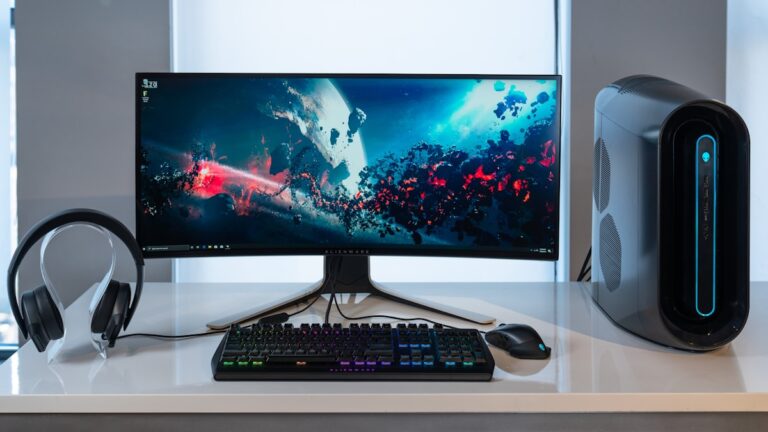
- Height: The top of your monitor should be at or just below eye level when you’re sitting upright. Most people need to raise their monitor by 3″–6″. A monitor riser, arm, or even a sturdy box can achieve this.
- Distance: 20″–30″ from your eyes (roughly arms’ length). Too close causes eye strain; too far causes you to lean forward.
- Tilt: Tilt the top of the monitor away from you by 10–20 degrees. This reduces glare and keeps your gaze at a naturally comfortable downward angle.
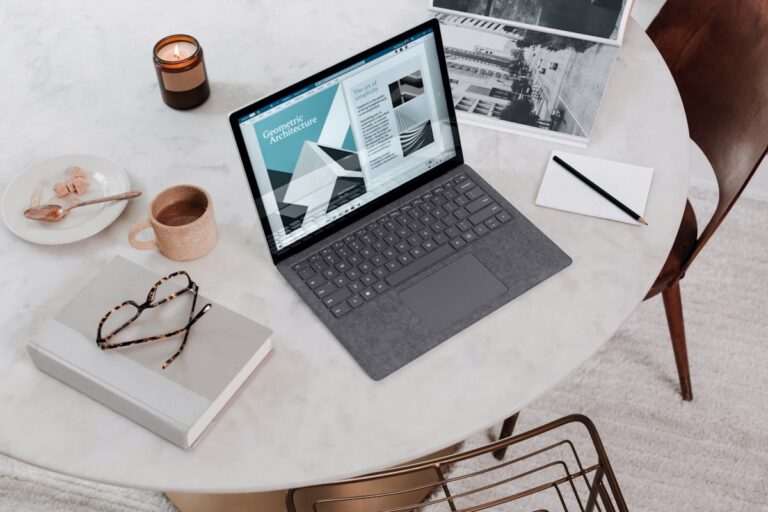
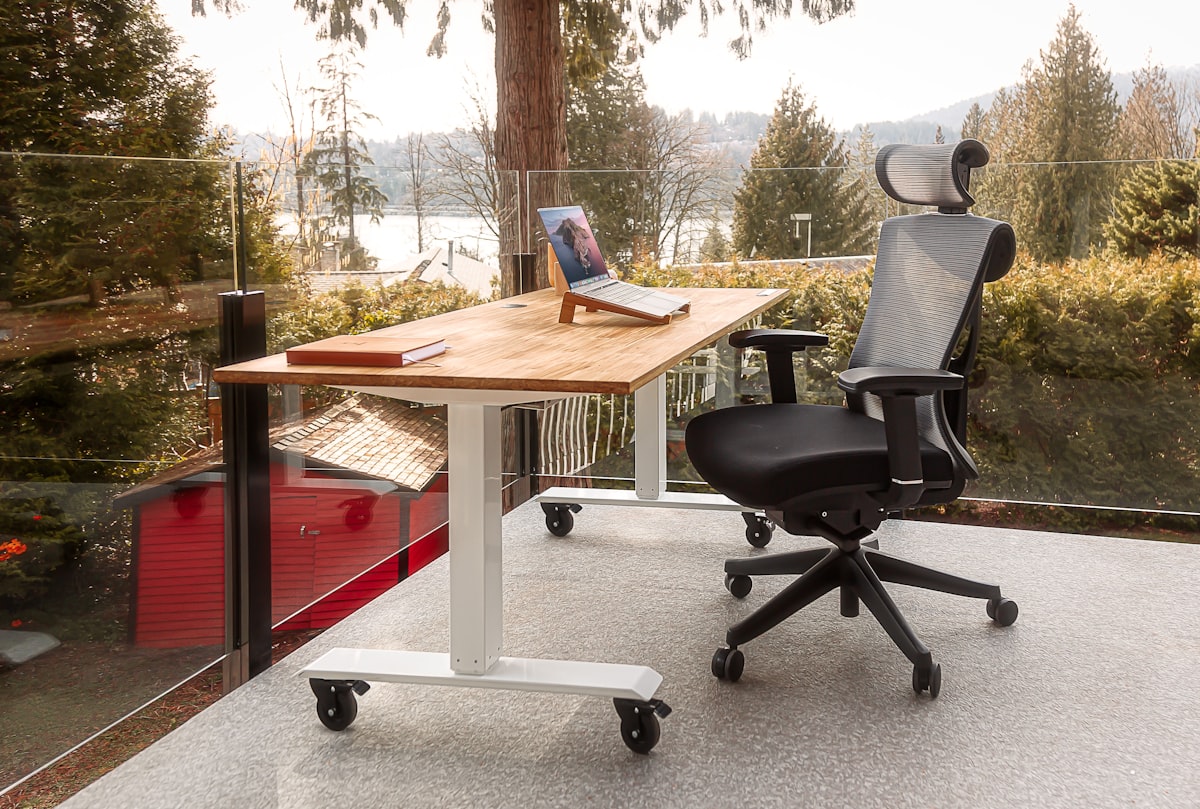
- For laptop users: A laptop on a desk without a stand forces constant forward head posture. Use a laptop stand with an external keyboard and mouse — this single change is the most impactful posture improvement for laptop workers.
Step 3 — Keyboard and Mouse Positioning
Your keyboard and mouse position determines shoulder and wrist posture:
- Keyboard height: Your elbows should be at roughly 90° and your wrists flat (not bent up) when typing. Most desks are slightly too high for this — lower your chair slightly or use a keyboard tray mounted under the desk.
- Keyboard distance: Close enough that your elbows stay near your body (not reaching forward). Your upper arms should hang naturally at your sides.
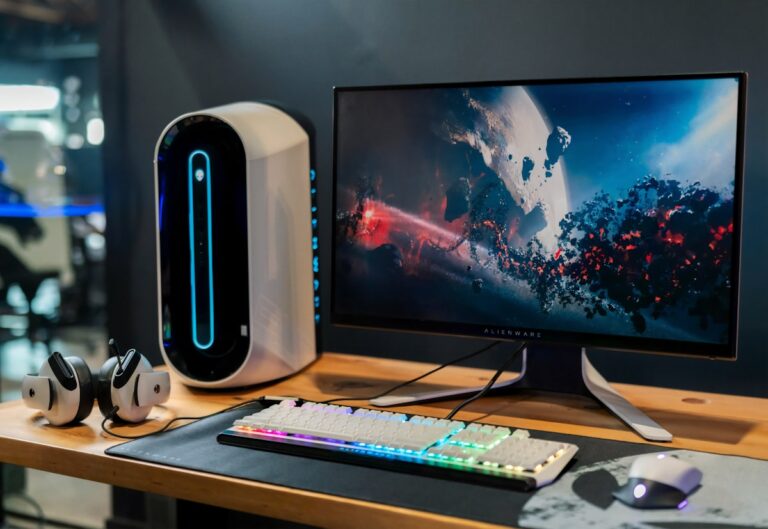
- Mouse position: As close to the keyboard as possible to avoid reaching. Consider a compact or tenkeyless keyboard to bring the mouse closer. An ergonomic vertical mouse keeps your wrist in a neutral handshake position.
Step 4 — Posture-Improving Exercises and Stretches
Even with a perfect ergonomic setup, your body needs movement to stay comfortable. Do these exercises daily:
- Chin tucks (10 reps, 3x daily): Gently pull your chin straight back, creating a slight double chin. Hold 5 seconds. Counteracts forward head posture.
- Chest openers (5 reps, 2x daily): Clasp hands behind your back, squeeze shoulder blades together, and open your chest. Counters rounded shoulders.
- Cat-cow stretch (10 cycles): On hands and knees, alternate between arching and rounding your back. Mobilizes the entire spine.
- Hip flexor stretch (30 seconds each side): Kneel on one knee, push hips forward. Sitting shortens hip flexors — this stretch counteracts it.
- Thoracic extension over chair back: Sit at the edge of a firm chair, place your hands behind your head, and gently extend back over the top of the chair. Opens the mid-back area that gets compressed from hunching.
The 20-20-20 Rule for Screen Time
Every 20 minutes, look at something 20 feet away for 20 seconds. This reduces eye strain and also prompts you to shift your posture. Set a timer or use an app like Stretchly that reminds you to take brief breaks. Standing up briefly every 30–45 minutes is even better — a standing desk or converter (see our standing desk guide) makes this effortless.
Ergonomic Tools That Help the Most
Beyond chair and monitor adjustments, these tools provide measurable posture improvement:
- Lumbar support cushion: For chairs without adequate lumbar support — a memory foam cushion fills the gap and maintains lumbar curve.
- Monitor arm: Provides precise height, depth, and angle adjustment that monitor stands can’t match.
- Standing desk or converter: Allows you to alternate positions throughout the day — the single best way to reduce cumulative sitting strain.
- Ergonomic keyboard: A split or angled keyboard keeps wrists in a more neutral position. See our best keyboards for home office.
Frequently Asked Questions
How long does it take to fix posture from working from home?
With correct ergonomic adjustments and daily exercises, most people notice meaningful improvement in 2–4 weeks. Some immediate relief (reduction in acute pain or tension) can happen within days of fixing monitor height and chair adjustment. Full postural re-patterning takes 6–12 weeks of consistent practice. The exercises are as important as the equipment changes.
Can a chair cause bad posture?
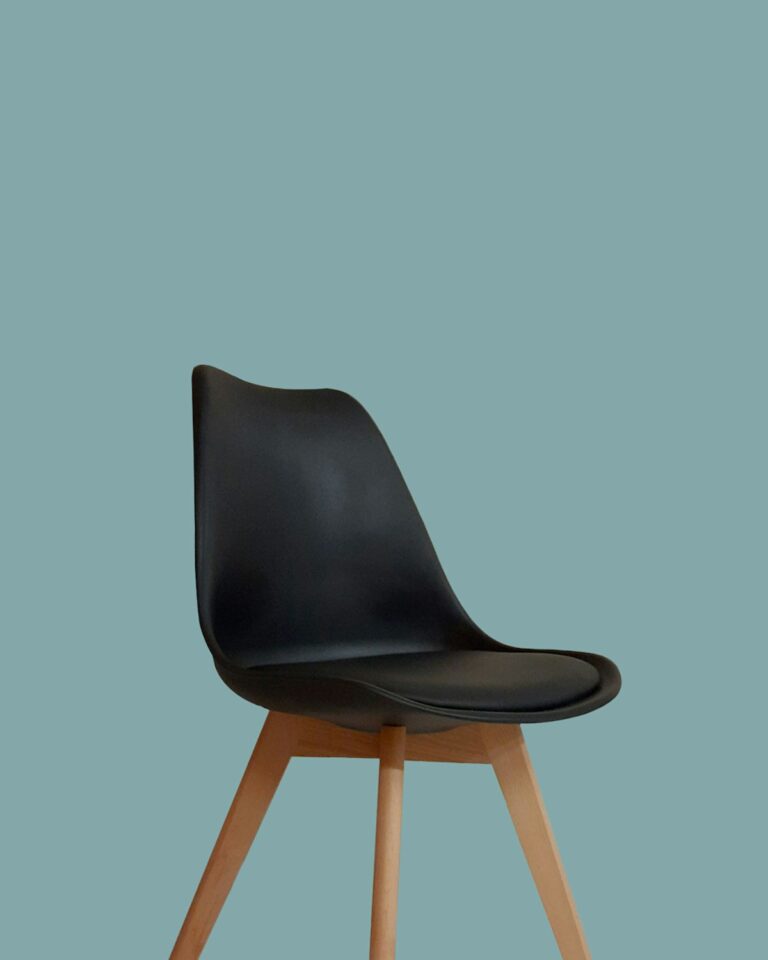
Yes. A chair that’s too high, too low, too soft, or lacking lumbar support actively creates bad posture by making it physically uncomfortable to sit correctly. A quality ergonomic chair with proper adjustability makes good posture feel natural and sustainable, rather than requiring constant muscular effort to maintain.
Is sitting or standing better for posture?
Neither is best in isolation — alternating between the two is optimal. Extended sitting compresses the lumbar spine and shortens hip flexors. Extended standing can cause lower limb fatigue and lower back pain. The recommendation from occupational health research is to stand for approximately 15–30 minutes out of every hour and alternate throughout the day.
Does a standing desk improve posture?
A standing desk improves posture primarily by allowing you to vary your position throughout the day. Standing itself doesn’t automatically produce good posture — you can stand with poor posture too. However, alternating between sitting and standing breaks the sustained, static loading of your spine that causes so much WFH-related pain. A standing desk combined with a good anti-fatigue mat is one of the best investments for long-term spinal health.
What is the correct posture for computer work?
Feet flat on the floor, knees at 90°, hips at or slightly above knee level, lower back supported in its natural inward curve, elbows at 90° with wrists flat, monitor at eye level and arms’ length away, head balanced directly over your shoulders (not jutting forward), and shoulders relaxed (not raised or rounded). This is the neutral, balanced posture that minimizes muscular and skeletal loading during extended desk work.
Alex Carter — Home Office Specialist
Alex researches home office gear using documented specifications, manufacturer sources, and transparent selection criteria. Corrections and updated source information are welcome.